 Flip through our history
How can I install TS Manager 3 on multiple clients with shared databases?
- Step 1 Install MSSQL (or MSSQL Express) on a client machine
- Step 2 Install TSManager 3 on the same client machine as MSSQL
- Step 3 Start TSManager 3 and follow the first time run wizard (Administrator user creation)
- Step 4 Select Configuration -> Advanced Under Database section press Advanced button the following dialog window will be shown
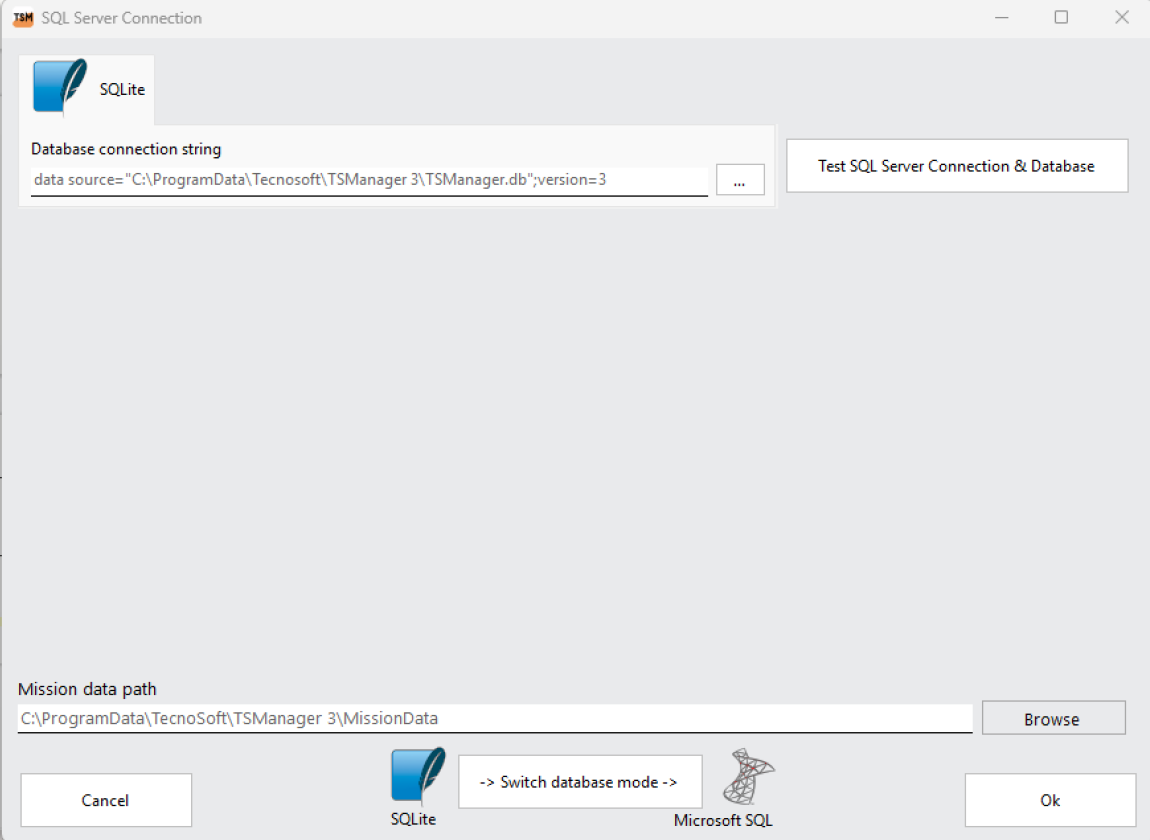
Click on Switch database mode
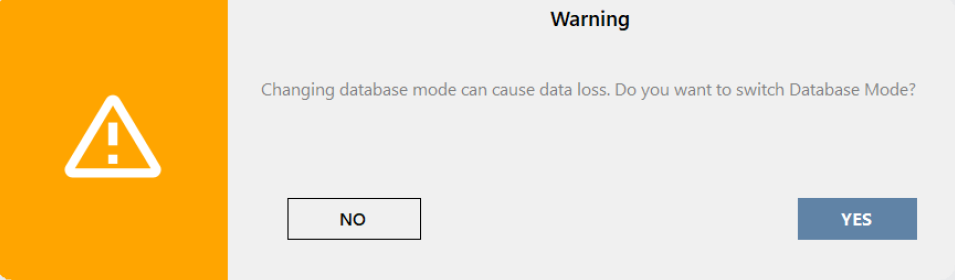
Confirm database change.
- Step 5 Press "Test SQL Connection & Database", the following dialog will be shown
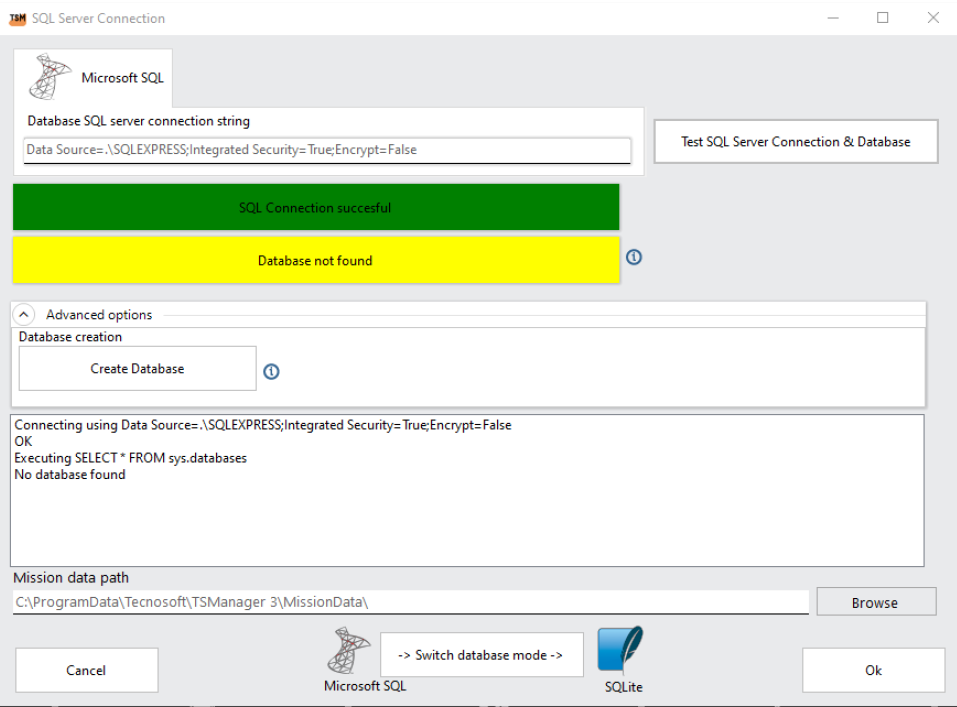
- Step 6 Press Create Database button
- Step 7 Confirm creation

- Step 8 Enter the critical action confirmation phrase
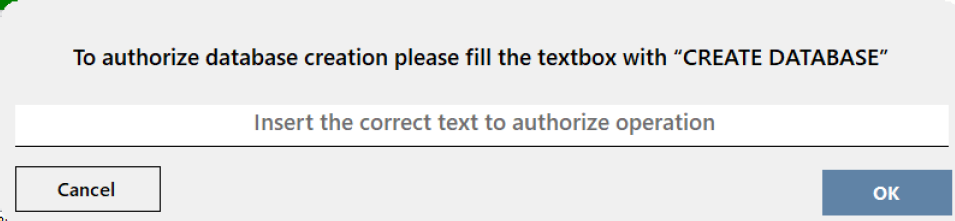
If the operation succeeded the following Dialog will be shown
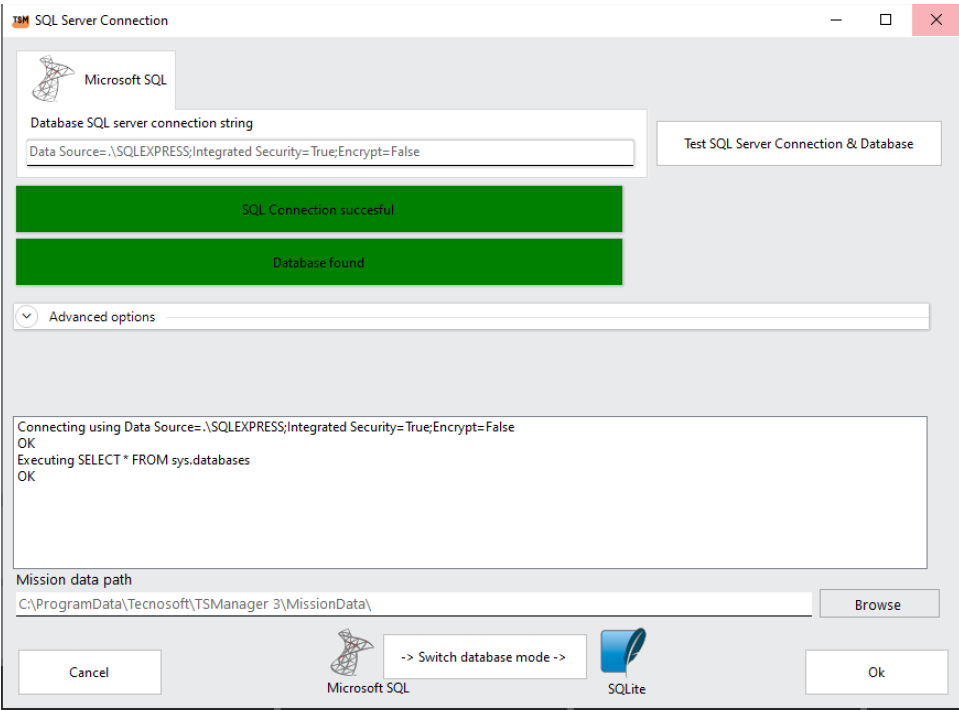
The Following steps must be executed by an IT Manager a brief description of the steps required is listed below
- Step 9 Copy the database files (TSManager.mdf and TSManager_log.ldf) from the client machine to the MSSQL Server machine (Usually the file are stored in the following path C:\Program Files\Microsoft SQL Server\MSSQL11.SQLEXPRESS\MSSQL\DATA)
- Step 10 From the MSSQL Server attach the TSManager database
- Step 11 Provide all required permission to the client user to access the database
- Step 12 Create on a server a shared folder with read and write privileges to the client user that will run TSManager 3
- Step 13 For every client machine replace TSManager 3 (Configuration -> Advanced) connection string with the string provided from the IT Manager
- Step 14 For every client machine replace Mission data path to the shared folder created by the IT Manager